DKIM (DomainKeys Identified Mail) is a critical email authentication method that adds a digital signature to your outgoing messages, proving they haven't been tampered with in transit and verifying they actually came from your domain. While conceptually straightforward, DKIM implementation has numerous pitfalls that can break authentication and harm deliverability.
This comprehensive guide covers everything you need to know about DKIM: how it works, best practices for implementation, common mistakes that cause failures, and troubleshooting techniques when things go wrong.
How DKIM Works
DKIM uses public key cryptography to verify email authenticity:
DKIM Signature Flow:
1. Sending server generates hash of email content
2. Hash is encrypted with private key (only sender has this)
3. Encrypted signature added to email headers
4. Receiving server retrieves public key from DNS
5. Decrypts signature and verifies content hasn't changed
6. Returns DKIM pass/fail result
🔑 Key Concept: Asymmetric Cryptography
Private key (kept secret on mail server) signs messages. Public key (published in DNS) verifies signatures. This ensures only authorized servers can sign email as your domain.
DKIM Best Practices
1. Use 2048-bit Keys (Minimum)
❌ Weak: 1024-bit
Considered weak by modern standards. Some receivers may reject or downgrade trust.
Risk: Vulnerable to brute force attacks
✅ Strong: 2048-bit
Industry standard. Accepted by all major email providers. Good balance of security and performance.
Recommendation: Use 2048-bit minimum
Note: 4096-bit keys provide even stronger security but may exceed DNS TXT record size limits (512 bytes). Stick with 2048-bit unless you have specific compliance requirements.
2. Use Descriptive Selectors
The DKIM selector identifies which public key to use for verification. Choose meaningful names:
Good Selector Examples:
s1orselector1- Simple, sequential2026-01- Date-based for key rotation trackingmailordefault- Purpose-basedgoogleormailchimp- Service-specific for third parties
⚠️ Avoid Cryptic Selectors
Don't use random strings like k1 or dkim. Six months from now, you won't remember what they're for. Use descriptive names that indicate purpose or rotation date.
3. Sign All Outgoing Email
DKIM should be applied to ALL outbound email, not just marketing:
- Transactional email: Order confirmations, password resets, notifications
- Marketing email: Newsletters, promotional campaigns
- Employee email: Office 365, Google Workspace, self-hosted mail
- Automated systems: Server alerts, application logs sent via email
💡 Why Sign Everything?
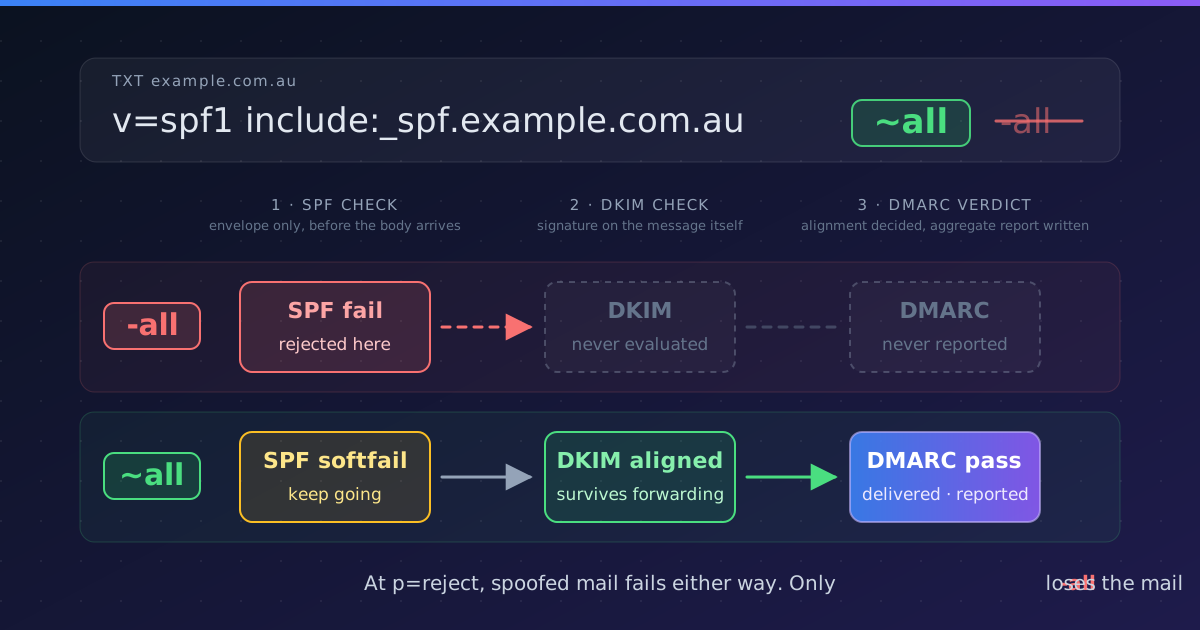
DMARC requires either SPF or DKIM to pass. If SPF fails (common with forwarded email), DKIM is your backup. Unsigned email has no authentication redundancy.
4. Sign Critical Headers
DKIM signatures should include these headers at minimum:
Recommended Headers to Sign:
From:        (REQUIRED for DMARC alignment)
To:
Subject:
Date:
Message-ID:
Content-Type:
MIME-Version:
🚨 Critical: Always Sign From: Header
The From: header MUST be signed for DMARC alignment. Without it, DKIM passes but DMARC fails, defeating the purpose of authentication.
5. Implement Key Rotation
Rotate DKIM keys periodically to limit damage if private key is compromised:
Recommended Rotation Schedule
- • High-security environments: Every 6 months
- • Standard businesses: Every 12 months
- • Low-volume senders: Every 24 months
- • After security incident: Immediately
Rotation Process:
- Generate new key pair with new selector
- Publish new public key to DNS
- Wait 24-48 hours for DNS propagation
- Update mail server to sign with new private key
- Monitor for authentication failures
- After 30 days, remove old public key from DNS
6. Monitor DKIM Signing Status
Set up monitoring to catch DKIM failures before they impact deliverability:
- Review DMARC reports weekly for DKIM failures
- Test DKIM signing with mail-tester.com or similar tools
- Alert on sudden increase in DKIM fail rate
- Verify signing after mail server updates or migrations
Common DKIM Mistakes
Mistake #1: Not Signing From: Header
Problem: DKIM signature doesn't include From: header, causing DMARC alignment failure even though DKIM passes.
Symptoms: DMARC reports show DKIM=pass but DMARC=fail
Fix: Update DKIM configuration to include From: in signed headers list
Mistake #2: DNS Record Formatting Errors
Problem: Public key published incorrectly in DNS (extra spaces, missing quotes, wrapped lines)
Symptoms: All DKIM signatures fail with "key unavailable" or "syntax error"
❌ Incorrect (line breaks in key):
v=DKIM1; k=rsa; p=MIGfMA0GCSqGSIb3DQEBAQUAA4GNAD
CBiQKBgQC3QEKyU1fSma0axspqYK5iAj
✅ Correct (continuous string):
v=DKIM1; k=rsa; p=MIGfMA0GCSqGSIb3DQEBAQUAA4GNADCBiQKBgQC3QEKyU1fSma0axspqYK5iAj...Fix: Use DNS management tools that properly handle long TXT records
Mistake #3: Domain Mismatch (d= vs From:)
Problem: DKIM signature d= domain doesn't match From: domain, breaking DMARC alignment
Example:
From: [email protected]
DKIM-Signature: d=mailserver.com; ...
Result: DKIM passes but DMARC fails (no alignment)
Fix: Ensure d= domain matches or aligns with From: domain
Mistake #4: Signing Too Few Headers
Problem: Only signing body content or minimal headers, allowing header injection attacks
Risk: Attackers can modify To:, Subject:, or other unsigned headers
Fix: Sign all important headers (From, To, Subject, Date, Message-ID, Content-Type)
Mistake #5: Not Testing After Changes
Problem: DKIM breaks after server updates, key rotation, or DNS changes, but nobody notices until deliverability drops
Prevention: Always test DKIM after any email infrastructure change
Fix: Send test email to mail-tester.com and verify DKIM passes
Mistake #6: Forgetting About Third-Party Services
Problem: Marketing platform, CRM, or helpdesk sends email without DKIM signing
Symptoms: Email from these services fails DMARC (no DKIM, SPF only)
Fix: Configure DKIM in every service that sends email on your behalf
Mistake #7: Using SHA-1 Hash Algorithm
Problem: SHA-1 is deprecated and considered cryptographically weak
Modern standard: SHA-256 (specified with a=rsa-sha256)
Fix: Update DKIM configuration to use SHA-256 hashing
Troubleshooting DKIM Failures
Step 1: Identify the Failure Type
DKIM failures fall into several categories:
Common DKIM Error Messages:
- •
DKIM=none- No signature present - •
DKIM=fail (body hash mismatch)- Content modified in transit - •
DKIM=fail (key not found)- DNS record missing or incorrect selector - •
DKIM=fail (signature verification failed)- Wrong private key or corrupted signature - •
DKIM=temperror- Temporary DNS failure
Step 2: Test Your DKIM Setup
Testing Checklist:
- Verify DNS record exists:
nslookup -type=TXT selector._domainkey.example.com - Check record formatting: Ensure no line breaks in public key, proper syntax
- Send test email to mail-tester.com: Get immediate DKIM validation feedback
- Review email headers: Look for DKIM-Signature header and Authentication-Results
- Compare d= with From: domain: Verify alignment for DMARC
Step 3: Fix Common Issues
Issue: Body Hash Mismatch
Cause: Email content modified after signing (often by email security gateways, disclaimers, or mailing list managers)
Solutions:
- Use body length limit (l= tag) to allow footer additions
- Configure gateway to add disclaimers before DKIM signing
- Whitelist your mail server IPs in security gateway
Issue: Key Not Found in DNS
Cause: Public key not published, wrong selector, or DNS propagation delay
Solutions:
- Verify selector matches between mail server config and DNS
- Check DNS record syntax (no extra spaces or quotes)
- Wait 24-48 hours after DNS changes
- Test DNS from external resolver (8.8.8.8)
Issue: Signature Verification Failed
Cause: Public key doesn't match private key used for signing
Solutions:
- Regenerate key pair and republish
- Verify you're using the correct private key file
- Check file permissions on private key
DKIM for Different Email Services
Office 365 / Microsoft 365
DKIM is not enabled by default. You must manually enable it in the Microsoft 365 Admin Center.
Setup Steps:
- Go to Microsoft 365 Admin Center → Security → Email & Collaboration → Policies → DKIM
- Select your domain and click "Create DKIM keys"
- Microsoft provides two CNAME records to add to your DNS
- Add both CNAME records (selector1 and selector2)
- Return to admin center and click "Enable" after DNS propagation
Google Workspace
Google Workspace requires manual DKIM key generation and DNS publishing.
Setup Steps:
- Go to Google Admin Console → Apps → Google Workspace → Gmail → Authenticate Email
- Select domain and click "Generate new record"
- Choose 2048-bit key and custom prefix (or use default "google")
- Copy the TXT record and add to your DNS
- Return to admin console and click "Start Authentication"
Third-Party Services (SendGrid, Mailchimp, etc.)
Most marketing/transactional email services provide DKIM signing, but you must configure it:
- Service generates DKIM key pair for you
- You add their DNS records to your domain
- Service signs email on your behalf using their private key
- Public key in your DNS allows verification
⚠️ Important: d= Domain Alignment
Ensure third-party service signs with d=yourdomain.com, not d=serviceprovider.com. Otherwise DKIM passes but DMARC fails due to alignment mismatch.
Conclusion
DKIM is essential for modern email authentication. When implemented correctly with 2048-bit keys, proper header signing, and regular monitoring, it provides strong protection against email tampering and improves deliverability.
The most critical practices:
- Always sign the From: header for DMARC alignment
- Use 2048-bit or larger keys
- Sign all outgoing email, not just marketing
- Test after any mail infrastructure changes
- Rotate keys annually
- Monitor DMARC reports for DKIM failures
With proper DKIM implementation, you'll have robust email authentication that works even when SPF fails, ensuring maximum deliverability and protection against spoofing.
Simplify DKIM Management
DMARC Busta automatically monitors DKIM signing across all your email services, alerts you to failures, and provides step-by-step fixing guides.
Start Free Trial